Tap to pay, logged for you
Every in-store Apple Pay purchase lands in Money Talks on its own: amount, currency and shop, from the Wallet cards you pick. Set up a Shortcuts automation once, about two minutes, and stop typing receipts.
Works for in-store payments. Purchases inside apps and on the web do not trigger it. Free on every plan, from any bank.
Download Money Talks free on the App Store →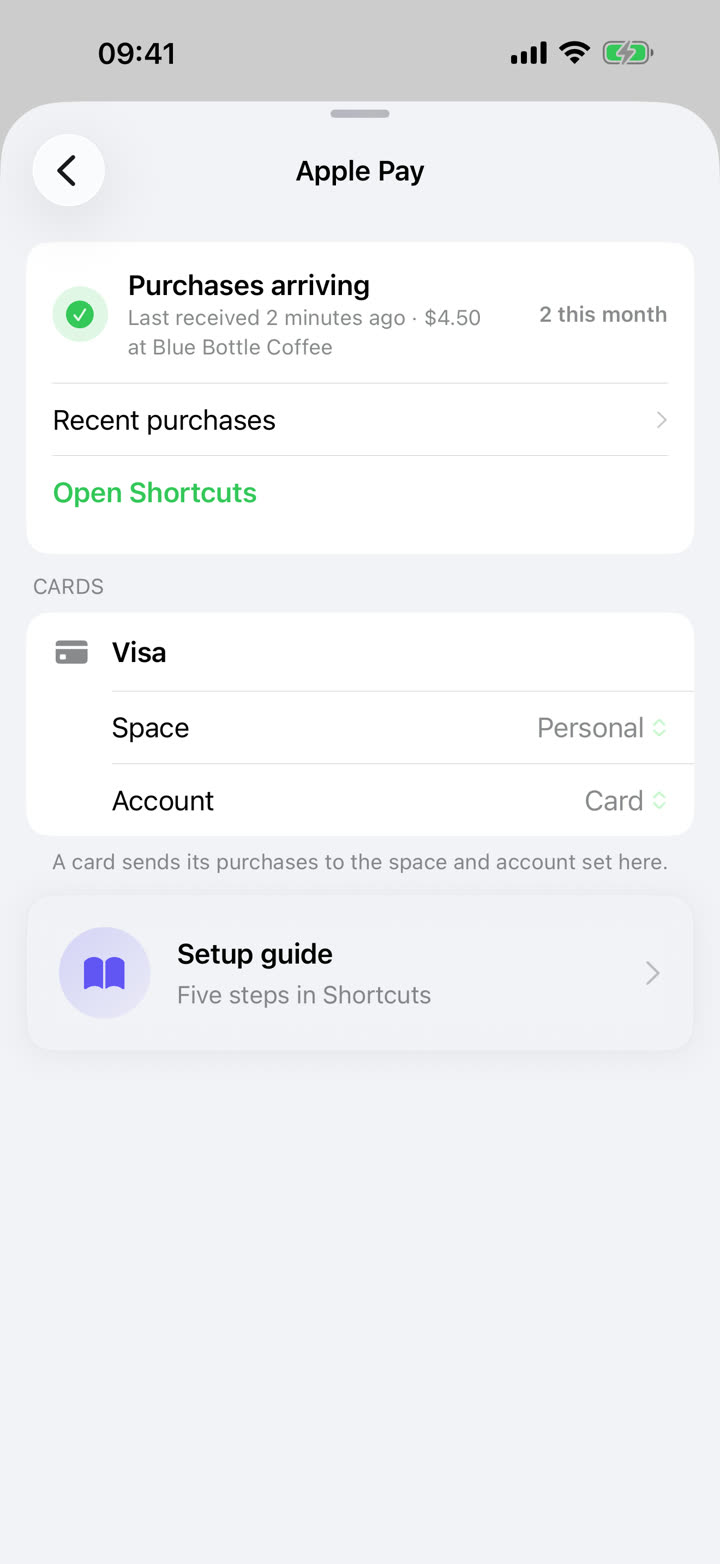
What you get
Set up once in Shortcuts
An automation runs when you tap a card. About two minutes.
Cards link to your accounts
Each Wallet card shows up here after its first purchase. Pick where it belongs.
Categories are remembered
A merchant you have filed three times is filed the same way again. New ones ask once.
Set up once, in five steps
These clips are the real Shortcuts screens, one per step. Follow along on your iPhone.
-
Step 1
Open Shortcuts
In Shortcuts open Automation and tap the plus. Choose New Automation, then Wallet.
-
Step 2
Pick your cards
Tick the cards you pay with and leave the categories on. Scroll down: choose Run Immediately and switch on Notify When Run. Tap Next.
-
Step 3
Add the Money Talks action
Tap Create New Shortcut. Search for Money Talks and pick Log Apple Pay Purchase. Not listed? Open Money Talks once and come back.
-
Step 4
Connect the amount
Tap the amount, then Select Variable, then Shortcut Input. Tap that chip once more and pick Amount. Do the same for Merchant and Card.
-
Step 5
Pay once
Tap the checkmark to save. Pay with your phone in any shop. The purchase lands in Transactions, and a notification helps you give the new card an account and a space.
A card knows where it belongs
Link each Wallet card to an account and, if your family shares a space, point it at that space in Settings › Apple Pay. The first purchase from a new card sends you there with a tap.
Categories that learn
Every capture is saved without a category and a notification opens it for you. With a Money Talks account, a shop you have filed three times gets that category back when the purchase syncs, so the tap becomes a check instead of a chore.
Known limits
- Each Wallet card must be ticked in the automation.
- Cards with the same name in Wallet count as one card. Make an automation for each of them and type a different name in the Card field.
- Online and in-app Apple Pay do not trigger the automation.
- Declined payments do trigger it.
- Two identical purchases within a minute are both kept and one is marked as a possible duplicate.
- A late bank notification can make the trigger time out.
Frequently asked questions
Does Money Talks connect to Apple Pay?
No. Apple does not let apps read Wallet transactions directly. Money Talks ships a Shortcuts action, and iOS's own Wallet automation runs it after each in-store tap, handing over the amount, the shop and the card name. Nothing else about the payment leaves your phone.
Does it work for online and in-app purchases?
No. The Wallet automation fires for in-store, tap-to-pay purchases only. Online and in-app Apple Pay do not trigger it.
Which currency is used abroad?
The one you paid in. The amount arrives with the shop's currency, and Money Talks converts it to your base currency the way it does for any other transaction.
Do I need a bank connection?
No. Apple Pay capture works with any card in Wallet, from any bank, and asks for no bank login. It is free on every plan; several accounts to link cards to are part of Money Talks Pro, like multiple accounts themselves.
What if I already typed the purchase by hand?
Both are kept. Two identical purchases within a minute are both saved and one is marked as a possible duplicate, so you delete the wrong one instead of losing a real purchase.
Is the category filled in?
Not on the phone itself: every capture is saved uncategorized and a notification asks for a category. With a Money Talks account, a shop you have filed three times gets that category back when the purchase syncs, so the notification becomes a check rather than a chore.